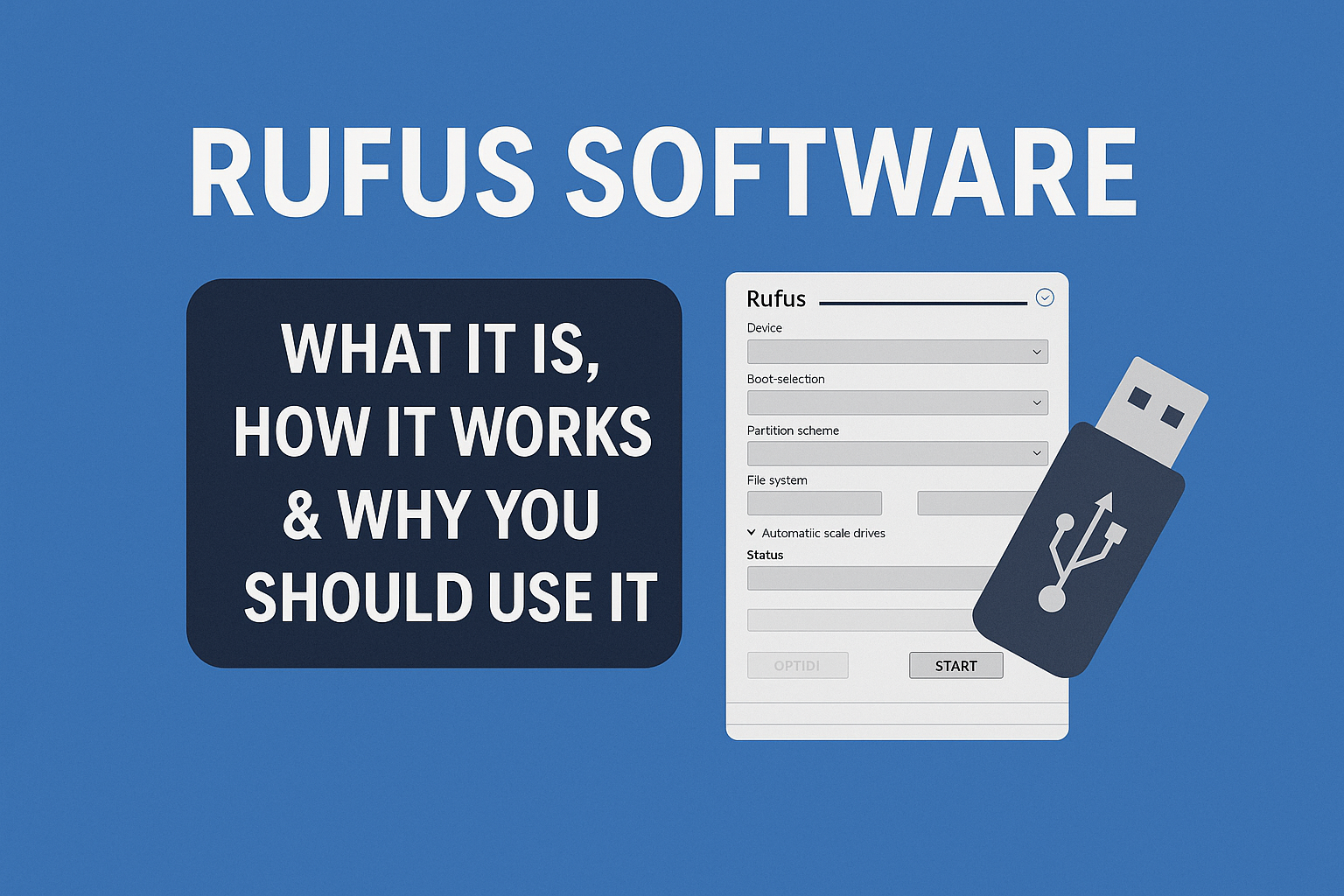
If you often install Windows, Linux, or any operating system on different computers, then Rufus software is one of the most powerful and lightweight tools you must have. It helps you create bootable USB drives quickly and easily. Whether you are a technician, student, or regular user, Rufus makes OS installation much simpler.
⭐ What is Rufus Software?
Rufus is a free, open-source utility used to create bootable USB flash drives.
It allows you to use ISO files to prepare a USB drive for installing:
- Windows (7/8/10/11)
- Linux distributions (Ubuntu, Debian, Fedora, etc.)
- Rescue tools
- BIOS/UEFI firmware flashing tools
👉 Important Point: Rufus is lightweight (<2 MB), portable (no installation needed), and extremely fast.
⭐ Key Features of Rufus Software
1. Create Bootable USB Drives Easily
You can convert any ISO file into a bootable USB in just a few clicks.
2. Supports Multiple OS
From Windows to Linux, Rufus supports almost all major operating systems.
3. Fast Speed
Rufus is much faster than many other tools like UNetbootin or the Windows Media Creation Tool.
4. Supports BIOS & UEFI
You can select between MBR and GPT partition schemes depending on your system.
5. Fully Free & Open Source
No ads, no bloatware – completely clean software.
6. Portable Software
No installation required; just download and run.
⭐ How to Use Rufus Software (Step-by-Step)
Step 1: Download Rufus
Go to the official Rufus website and download the latest version.
Step 2: Insert USB Drive
Plug in a USB pen drive (minimum 8 GB recommended).
Step 3: Select ISO File
Click SELECT and choose the Windows/Linux ISO file.
Step 4: Choose Boot Settings
- Partition Scheme: MBR or GPT
- Target System: BIOS or UEFI
- File System: FAT32 or NTFS
Step 5: Start
Click START, wait for the process to complete, and your bootable USB is ready!
👉 Important Point: All USB data will be erased—backup important files before starting.
⭐ Why Choose Rufus Over Other Tools?
- Faster performance
- Cleaner UI
- No installation needed
- Supports more OS types
- Lightweight
- High reliability
If you frequently install an OS on laptops/PCs, Rufus is a must-have utility in your toolkit.
⭐ Advantages & Disadvantages
✔ Advantages
- Free & open source
- Portable and lightweight
- Faster bootable USB creation
- Supports multiple ISO formats
❌ Disadvantages
- Limited to USB bootable creation only
- No ISO download for Windows directly (except optional Windows download option in some versions)
⭐ Frequently Asked Questions (FAQ)
1. Is Rufus software free?
Yes, Rufus is completely free and open source.
2. Can I use Rufus for Windows 11 installation?
Yes, Rufus supports Windows 11 bootable USB creation, even bypassing TPM & Secure Boot (optional).
3. Does Rufus work on Linux or Mac?
Rufus is designed for Windows, but you can create Linux USB bootable devices using it.
4. Does Rufus require installation?
No, Rufus is portable—just run the .exe file.
5. Will my USB data be erased?
Yes, creating a bootable USB will delete all data from your pen drive.
6. Is it safe to use Rufus?
Yes, Rufus is safe and trusted by millions of users worldwide.
⭐ Conclusion
Rufus software is one of the most reliable, fast, and easy-to-use tools for creating bootable USB drives. Whether you want to install Windows or Linux, Rufus simplifies the entire process. Its speed, portability, and flexibility make it the best choice for technicians and everyday users.
Latest Post
- Windows 11 ISO 64 Bit Download – Official Direct Link
- How to Choose a Laptop in 2026: Honest Step-by-Step Guide
- BSOD Error: What Is Blue Screen of Death and How to Fix It?
- Rufus Software: What It Is, How It Works & Why You Should Use It
- Shortcut Key for Screen Recording in Windows 10 (Complete Guide)
