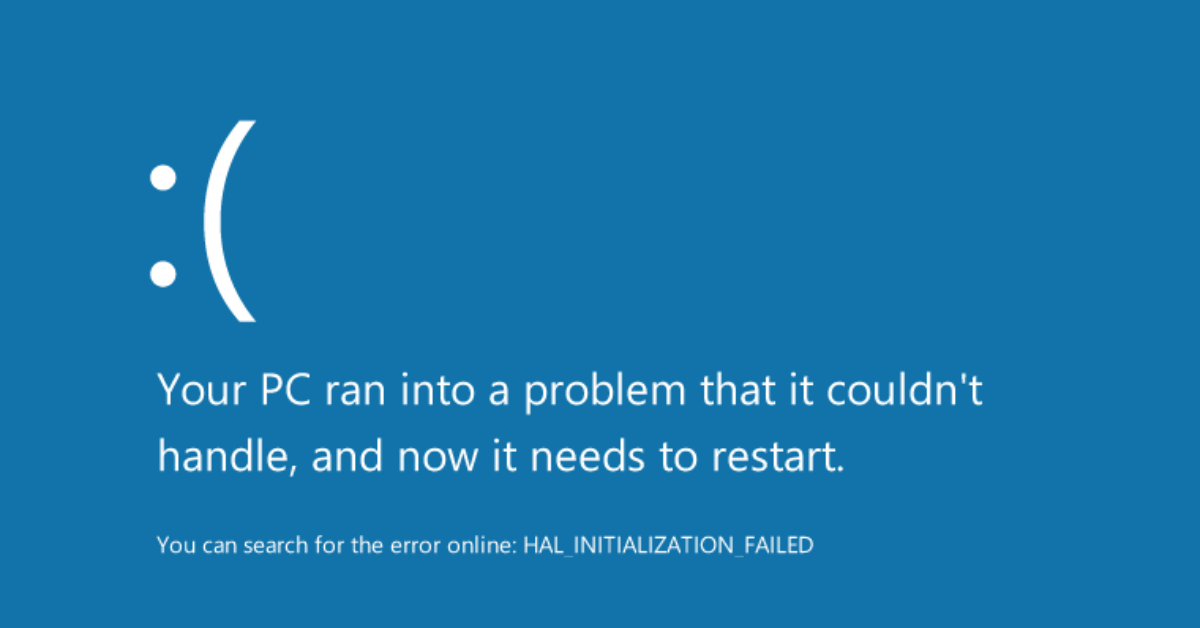
The BSOD Error (Blue Screen of Death) is one of the most common and frustrating errors Windows users face. It appears when Windows encounters a critical system issue that forces the computer to stop immediately to prevent damage. The blue screen usually shows a STOP code that helps identify the cause of the error.
In this blog, we will explain what a BSOD error is, why it happens, its common causes, and how to fix it easily—even if you are not a technical expert.
What Is a BSOD Error?
A BSOD (Blue Screen of Death) is a system crash error in Windows that occurs when the operating system can no longer operate safely. When Windows detects a severe problem, it shuts down immediately and displays a blue error screen with diagnostic information.
Common Causes of BSOD Error
✔ Faulty hardware (RAM, HDD/SSD, GPU)
✔ Corrupt or outdated drivers
✔ Windows system file corruption
✔ Overheating CPU or GPU
✔ Malware or virus infection
✔ Recent Windows update issues
✔ Power supply or battery problem
✔ Software conflicts or incompatible programs
How to Fix BSOD Error (Step-by-Step Guide)
1. Restart Your Computer
Sometimes BSOD appears once due to a temporary glitch. A simple reboot fixes it.
2. Check the STOP Code
Every BSOD shows a code like:
- CRITICAL_PROCESS_DIED
- MEMORY_MANAGEMENT
- IRQL_NOT_LESS_OR_EQUAL
This helps identify the root cause.
3. Remove Recently Installed Software
If the BSOD started after installing a program, uninstall it from Control Panel → Programs and Features.
4. Update Windows and Drivers
- Go to Settings → Windows Update
- Update drivers using Device Manager
Important Point:
➡ Outdated or corrupted drivers are the No.1 reason for BSOD errors.
5. Scan for Malware
Use Windows Defender or antivirus to remove threats.
6. Test RAM for Errors
Use Windows Memory Diagnostic:
- Press Win + R, type:
mdsched.exe - Restart and check for memory issues.
If RAM is faulty, BSOD will continue repeating.
7. Check Your Hard Drive/SSD
Run CHKDSK command:
chkdsk /f /r
Important Point:
➡ Bad sectors in HDD/SSD can cause frequent BSOD errors.
8. Boot in Safe Mode
Safe Mode loads only essential files.
If the BSOD doesn’t appear here, the issue is software-related.
9. Restore Windows to an Earlier Point
Use System Restore to undo recent changes.
10. Reset or Reinstall Windows
If nothing else works, reinstalling Windows solves major system corruption issues.
How to Prevent BSOD Errors in the Future
✔ Keep drivers updated
✔ Avoid installing untrusted software
✔ Regularly clean dust from your laptop
✔ Use a reliable antivirus
✔ Keep Windows updated
✔ Check system temperature regularly
✔ Upgrade faulty/old hardware
Frequently Asked Questions (FAQ)
1. What is the main cause of BSOD?
Mostly corrupted drivers, faulty RAM, and system file corruption.
2. Can BSOD damage my laptop?
No, BSOD itself doesn’t damage hardware. It protects the system from further damage.
3. How do I know which hardware is causing BSOD?
You can check:
- Windows Event Viewer
- STOP code on the screen
- RAM test
- Hard disk test
4. Does reinstalling Windows fix BSOD?
Yes, if the cause is software-related.
But if RAM or HDD is faulty, reinstall won’t help.
5. Why does BSOD happen after Windows update?
Because of driver conflicts, failed updates, or incompatible patches.
Important Points to Highlight
⭐ BSOD is a safety mechanism, not a damage indicator
⭐ STOP codes help diagnose the error
⭐ Most BSOD issues are caused by driver or hardware problems
⭐ Regular maintenance can prevent 90% of BSOD cases
⭐ Reinstall Windows only if all other methods fail
Latest Post
- PS5 Slim vs PS5 Pro: Which One Should You Buy in 2026?
- Sony PS5 Pro Price Drop 2026 – Latest Price, Cost & Buying Guide
- Windows 11 ISO 64 Bit Download – Official Direct Link
- How to Choose a Laptop in 2026: Honest Step-by-Step Guide
- BSOD Error: What Is Blue Screen of Death and How to Fix It?
