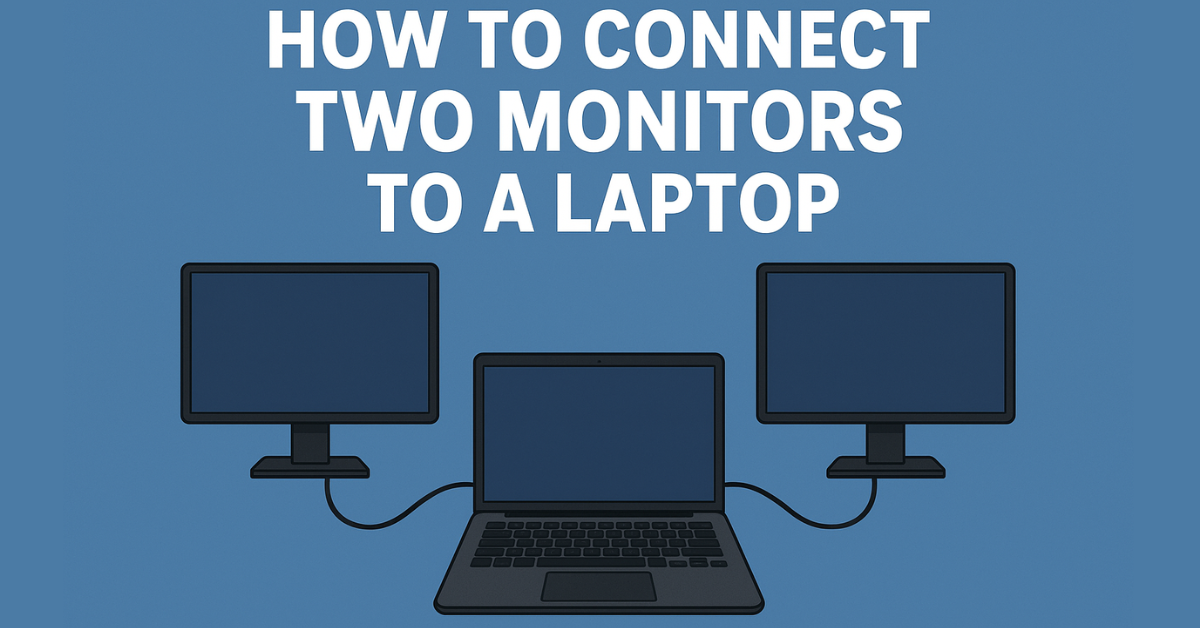
Using dual monitors increases productivity, improves multitasking, and creates a more comfortable workspace. Whether you are a student, gamer, editor, or office professional, connecting two external monitors to a laptop is easy—if your laptop supports it.
In this guide, you’ll learn how to connect two monitors to your laptop, the required ports, cables, settings, and troubleshooting tips.
⭐ Why Use Two Monitors With a Laptop?
- Work on multiple applications at the same time
- Improve video editing and multitasking
- Increase productivity by up to 40%
- Better gaming and streaming setup
- More comfortable workflow
Check if Your Laptop Supports Two Monitors
Before connecting, check these important points:
1. Check Your Laptop Ports
Most laptops have a mix of these video output ports:
- HDMI
- USB-C / Thunderbolt
- DisplayPort
- Mini HDMI
- VGA (older laptops)
👉 Important:
One HDMI port supports only one monitor.
If your laptop has only one HDMI but has USB-C with DisplayPort support, you can still connect two monitors.
2. Check Your Graphics Card
Both integrated and dedicated GPUs support dual monitors, including:
- Intel UHD / Iris
- AMD Radeon
- NVIDIA GeForce
If your laptop is older, search its model specs online.
Ways to Connect Two Monitors to a Laptop
Method 1: Using Two Separate Ports (Best & Easiest)
If your laptop has HDMI + USB-C or HDMI + DisplayPort, plug one monitor into each port.
Steps:
- Connect Monitor 1 → HDMI port.
- Connect Monitor 2 → USB-C to HDMI/DP adapter.
- Go to Display Settings and extend the display.
✔ Works on most modern laptops
✔ No drivers needed
Method 2: Using a USB-C / Thunderbolt Docking Station
Ideal for office or gaming setups.
What you need:
A docking station with dual HDMI or dual DisplayPort output.
Steps:
- Connect the dock to your laptop’s USB-C/Thunderbolt port.
- Connect both monitors to the dock.
- Configure display settings.
✔ Clean setup
✔ Supports 4K monitors
✔ Single cable to the laptop
Method 3: Using an HDMI Splitter (Not Recommended)
Important clarification:
🚫 HDMI splitters duplicate the screen; they do NOT extend the display.
If you want separate screens, avoid splitters.
Method 4: Using a USB to HDMI Adapter
Useful when your laptop has only one HDMI port.
Steps:
- Connect monitor 1 → HDMI
- Connect monitor 2 → USB 3.0 to HDMI adapter
- Install drivers
- Extend display
✔ Budget-friendly
✔ Works with most laptops
How to Configure Dual Monitor Settings (Windows)
Follow these steps after connecting your monitors:
- Right-click on desktop → Display Settings
- Scroll to Multiple Displays
- Select Extend These Displays
- Arrange monitor positions
- Set main display (optional)
- Adjust resolution and scaling
👍 Tip: Match the resolution of both monitors for better viewing.
Troubleshooting: If Your Two Monitors Are Not Working
- Check if your USB-C supports video output (DisplayPort Alt Mode)
- Update graphics drivers
- Try another HDMI or USB-C cable
- Restart your laptop
- Check monitor input source (HDMI 1, HDMI 2)
- Make sure “Extend Display” is selected
FAQs: How to Connect Two Monitors to a Laptop
1. Can I use an HDMI splitter for dual monitors?
No. Splitters only clone/duplicate the screen, not extend it.
2. What if my laptop has only one HDMI port?
Use a USB-C to HDMI adapter or a USB to HDMI adapter.
3. Can I connect two monitors to a non-USB-C laptop?
Yes. Use USB 3.0 to HDMI adapters.
4. Do docking stations work for dual monitors?
Yes, and they are the best option for stable dual display output.
5. Does connecting two monitors reduce laptop performance?
A little, especially during graphics-heavy tasks. But normal work is not affected.
Conclusion
Connecting two monitors to a laptop is simple once you know the right ports and adapters.
Whether you’re a creator, gamer, student, or office worker, dual monitors can significantly boost your productivity and create a better working environment.
Latest Post
- PS5 Slim vs PS5 Pro: Which One Should You Buy in 2026?
- Sony PS5 Pro Price Drop 2026 – Latest Price, Cost & Buying Guide
- Windows 11 ISO 64 Bit Download – Official Direct Link
- How to Choose a Laptop in 2026: Honest Step-by-Step Guide
- BSOD Error: What Is Blue Screen of Death and How to Fix It?
