Sometimes, your computer freezes, updates are pending, or you simply need a quick restart without using the mouse. In such cases, the CMD Restart Command is your best friend.
In this article, we’ll explain how to restart your Windows PC using CMD, different variations of the restart command, and common troubleshooting tips.
⚙️ What Is the CMD Restart Command?
The CMD Restart Command allows you to restart your Windows computer directly from the Command Prompt without navigating through the Start menu.
It’s especially useful for IT professionals, system admins, and power users who perform remote management or need to automate restart processes.
🧾 Basic in CMD Restart Command
To restart your computer immediately using CMD, follow these steps:
- Press Windows + R, type cmd, and hit Enter.
- In the Command Prompt window, type the following command:
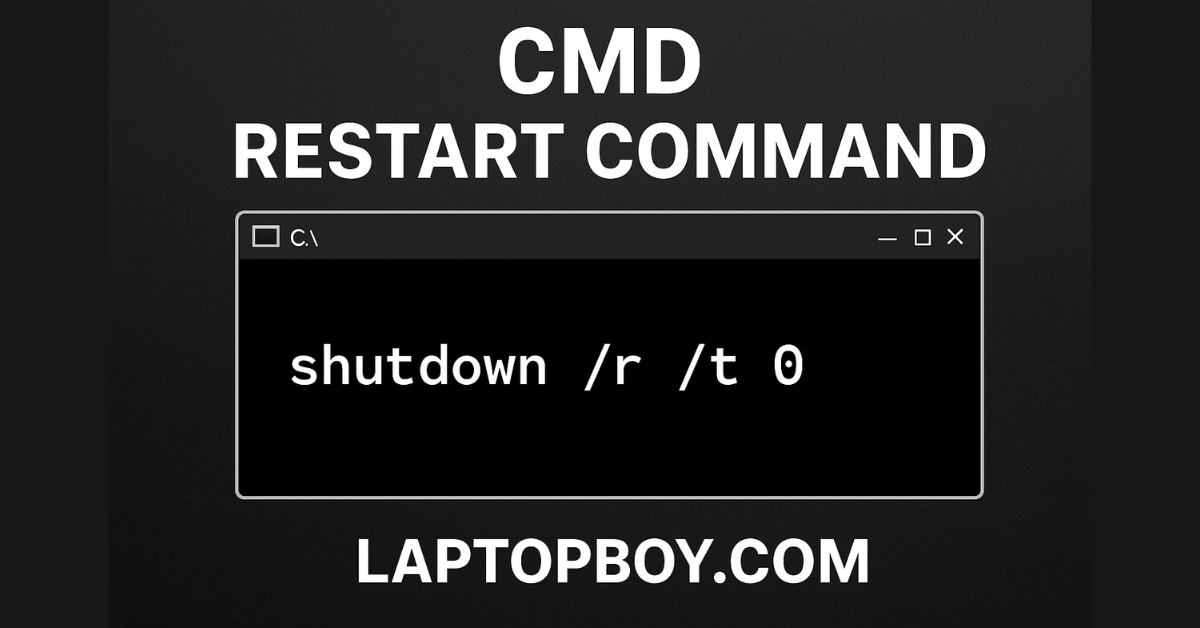
shutdown /r /t 0 - Press Enter.
✅ Explanation:
/rstands for restart./tspecifies the time delay in seconds (0 = immediate restart).
So, shutdown /r /t 0 means restart the system immediately.
⏱️ Restart with Time Delay
If you want to schedule a restart after a few seconds, use this command:
shutdown /r /t 60
💡 This command will restart your PC after 60 seconds, giving you time to save your work.
🔐 Force Restart Using CMD
Sometimes applications prevent the restart process. You can force a restart using:
shutdown /r /f /t 0
/fforces running applications to close.
⚠️ Warning: Unsaved data may be lost, so use this carefully.
🧰 Restart with Custom Message
Would you like to display a message before the restart? Try this:
shutdown /r /t 30 /c "Your PC will restart in 30 seconds. Please save your work!"
📢 The /c This option allows you to display a custom message to users before restarting.
🧑💻 Advanced Restart Options
You can also restart a remote computer using CMD if you have admin privileges:
shutdown /r /m \\ComputerName /t 0
Replace ComputerName with the name of the remote machine.
This is often used in network environments for remote maintenance.
🧠 Important Points to Remember
- ✅ Use
/rto restart,/sto shut down. - ✅
/tdefines the delay (0 to 315360000 seconds). - ✅
/fforces applications to close. - ✅
/cadds a custom comment/message. - ✅ Always run CMD as Administrator for best results.
❓FAQs – CMD Restart Command
Q1. What is the difference between shutdown /r shutdown /s?
➡️ /r restarts the system, while /s shutting it down completely.
Q2. Can I restart another computer on the same network?
➡️ Yes, if you have administrator access, use shutdown /r /m \\ComputerName.
Q3. How do I cancel a scheduled restart?
➡️ Type shutdown /a to abort the scheduled shutdown/restart.
Q4. Is it safe to force a restart with /f?
➡️ It’s safe but can lead to data loss if files are unsaved. Use with caution.
Q5. Can I restart my PC using PowerShell instead of CMD?
➡️ Yes, in PowerShell, you can use Restart-Computer.
📋 Conclusion
Using the CMD Restart Command is one of the fastest and most efficient ways to reboot your computer — especially useful for IT professionals and advanced users.
Whether you need an instant restart, a delayed restart, or a remote reboot, the shutdown The command in CMD offers full control.
Latest Post
- PS5 Slim vs PS5 Pro: Which One Should You Buy in 2026?
- Sony PS5 Pro Price Drop 2026 – Latest Price, Cost & Buying Guide
- Windows 11 ISO 64 Bit Download – Official Direct Link
- How to Choose a Laptop in 2026: Honest Step-by-Step Guide
- BSOD Error: What Is Blue Screen of Death and How to Fix It?
